Connect Claude to your CRM: MCP vs API and what breaks
Which CRMs have an official MCP server for Claude, when an API key in a script is the better route, and the 3 habits that catch the failures nobody sees, shown on a mock CRM you can download.
- Use the CRM's official MCP connector for questions in chat, and the API with a key in a script for anything repeatable or bulk. Start both read-only: block the connector's write tools, give the script a read-only key or user.
- What breaks is quiet: a connector in the wrong account, a success answer that changed nothing, a field that means something else in the other system.
- 3 habits catch them: look at 3 raw records first; dry run, undo file and read-back on every bulk write; check the account, stay read-only and keep keys out of the chat.
- On a mock CRM with the API traps planted, habits 1 and 2 caught every one, including 15 "OK" answers that changed 0 records, and the read-only key refused the stray write.
- Free: 8 prompts, a 1-page checklist and the mock CRM to practise on.
01MCP or API: 2 ways to connect Claude to your CRM
MCP (Model Context Protocol) is a plug: the CRM vendor runs a server, you add it to Claude as a connector, and Claude calls the CRM's tools from the chat. The API is the CRM's programming interface: a script (Claude can write it) calls it with a key. Most big CRMs now run an official MCP server:
| CRM | Can it write? | How to keep it read-only | In Claude's directory |
|---|---|---|---|
| Close | Yes: create, and with a 3rd scope update, delete and merge | Scope mcp.read | Yes |
| HubSpot | Yes: contacts, companies, deals, tickets, products, activities. Quotes and invoices read only | Block the write tools in Claude | Yes |
| monday.com | Yes. Every call counts against your daily API limit | Block the write tools in Claude | Yes |
| Pipedrive | Add and update. No delete tools | Block the write tools in Claude | Yes |
| Salesforce* | Separate servers for reads, changes and deletes, all off by default | Turn on the read server only | No: add it yourself |
| Zoho CRM | Yes, through the Data Operations server. Calls use API credits | Use the Data Insights server | Yes |
| Attio | Yes: records, notes, tasks, lists | Block the write tools in Claude | Yes |
| GoHighLevel | Yes, including sending messages. Key plus location ID | Leave out the edit scopes on the key | Not found |
Vendor docs and Claude's connector directory, checked on 13 October 2026. *Salesforce's own docs did not load; this row is from 2 independent reviews (Enterprise Edition and up, generally available since April 2026). Features move fast, so check the vendor page before you rely on a row.
Claude lets you set every connector tool to "always allow", "needs approval" or "blocked". Block write tools until you need them; Claude's help page warns that Research mode can call tools without asking.
Your data: on Free, Pro and Max, the "help improve Claude" setting decides whether chats may be used for training; Team, Enterprise and the API fall outside it. On Team and Enterprise, 1 fixed key in a connector is shared by every user: keep it narrow.
When the MCP connector wins: questions in chat, like "which deals over 10,000 have had no activity for 30 days?".
When the API wins: anything you run twice, anything over a few hundred records, every bulk change. A script repeats exactly, logs what it did, and you can read it before it runs. My own order is fixed: the API with a key first, the MCP connector second, clicking through the browser last.
Which key: a read-only or tightly scoped key for analysis, an admin key only while you build. Not every CRM gives you a read-only key. A Close API key and a monday or Pipedrive personal token carry everything your user can do. HubSpot private apps take read and write permissions one by one. Where the key cannot be narrowed, use a separate read-only user (check what your plan charges for it).
02What breaks: the API says "OK" and nothing happened
These 3 pass silently or point you the wrong way. I have hit all of them in real CRM projects:
Ask Claude "did it work?" and it will usually read the "OK" and say yes. Check the data instead.
033 habits that catch it, tested on a mock CRM
I built a mock CRM (60 fictional leads, 244 calls) and a demo script. Traps 2 and 3 are planted in it: an ignored filter, an ignored field name, and ring time in call duration. The script checked every result against a reference calculation, and the screenshots are its unedited logs. This is a simulation of the traps, not a test of any vendor's API.
Habit 1: look at 3 raw records before you trust a filter or a field
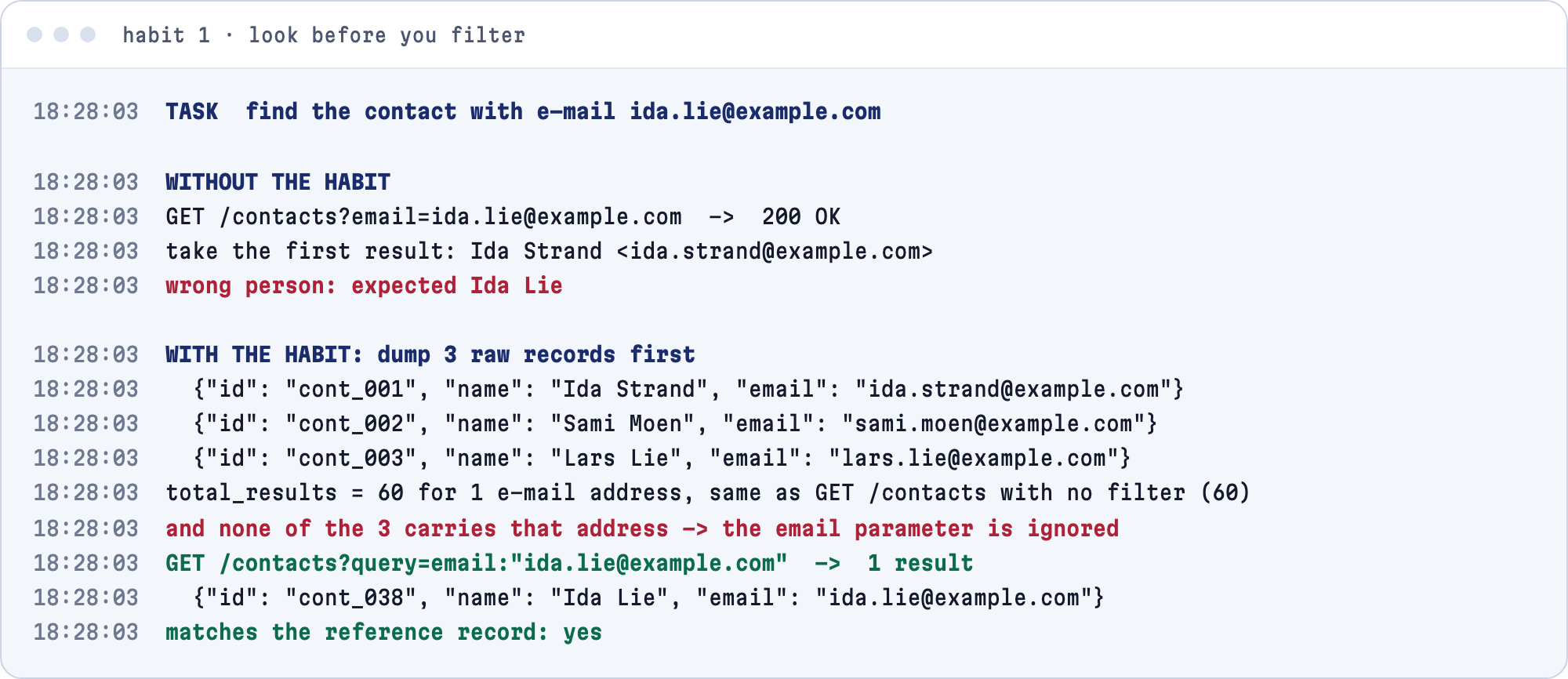
The lookup by e-mail answered 200 OK with 60 contacts for 1 address; the first was the wrong person. The count equalled the unfiltered total, and none of 3 raw records had the address. The documented query found the right contact.
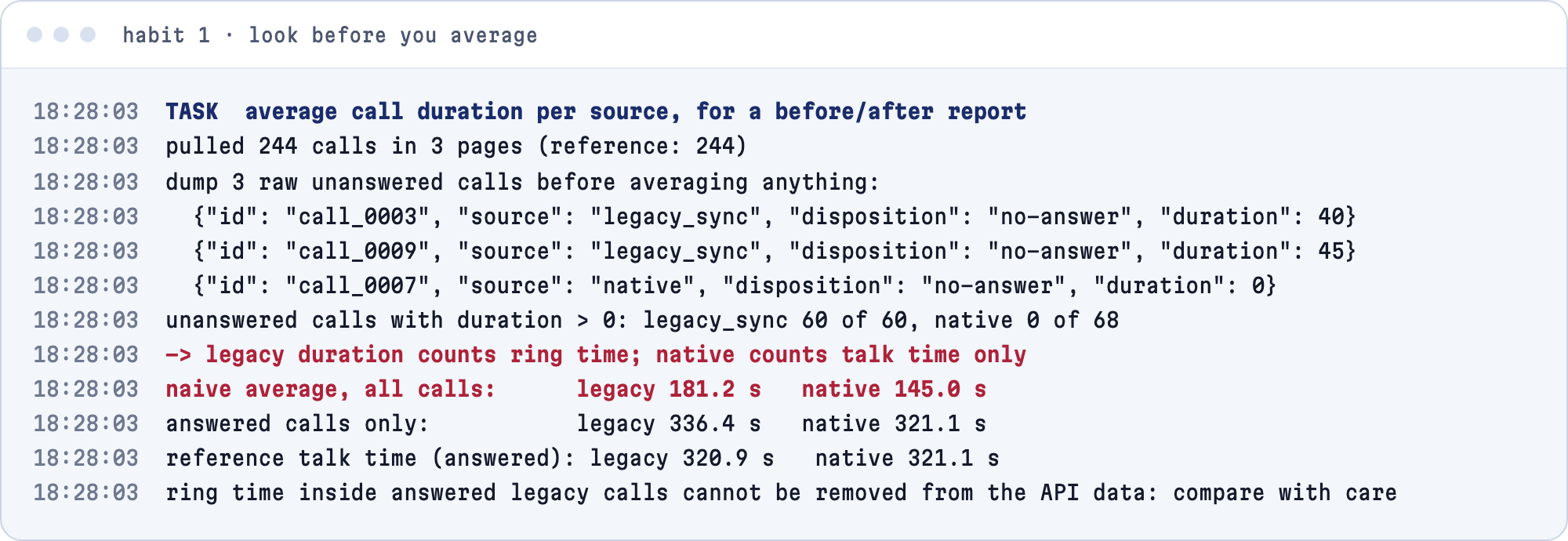
On calls: 60 of 60 unanswered calls from the old phone sync had a duration above 0, against 0 of 68 native ones. Even on answered calls, the old system looked 15.3 s longer (336.4 s against 321.1 s). That gap is ring time: the real talk time was 320.9 s and 321.1 s.
Habit 2: dry run, undo file, read-back on every bulk write
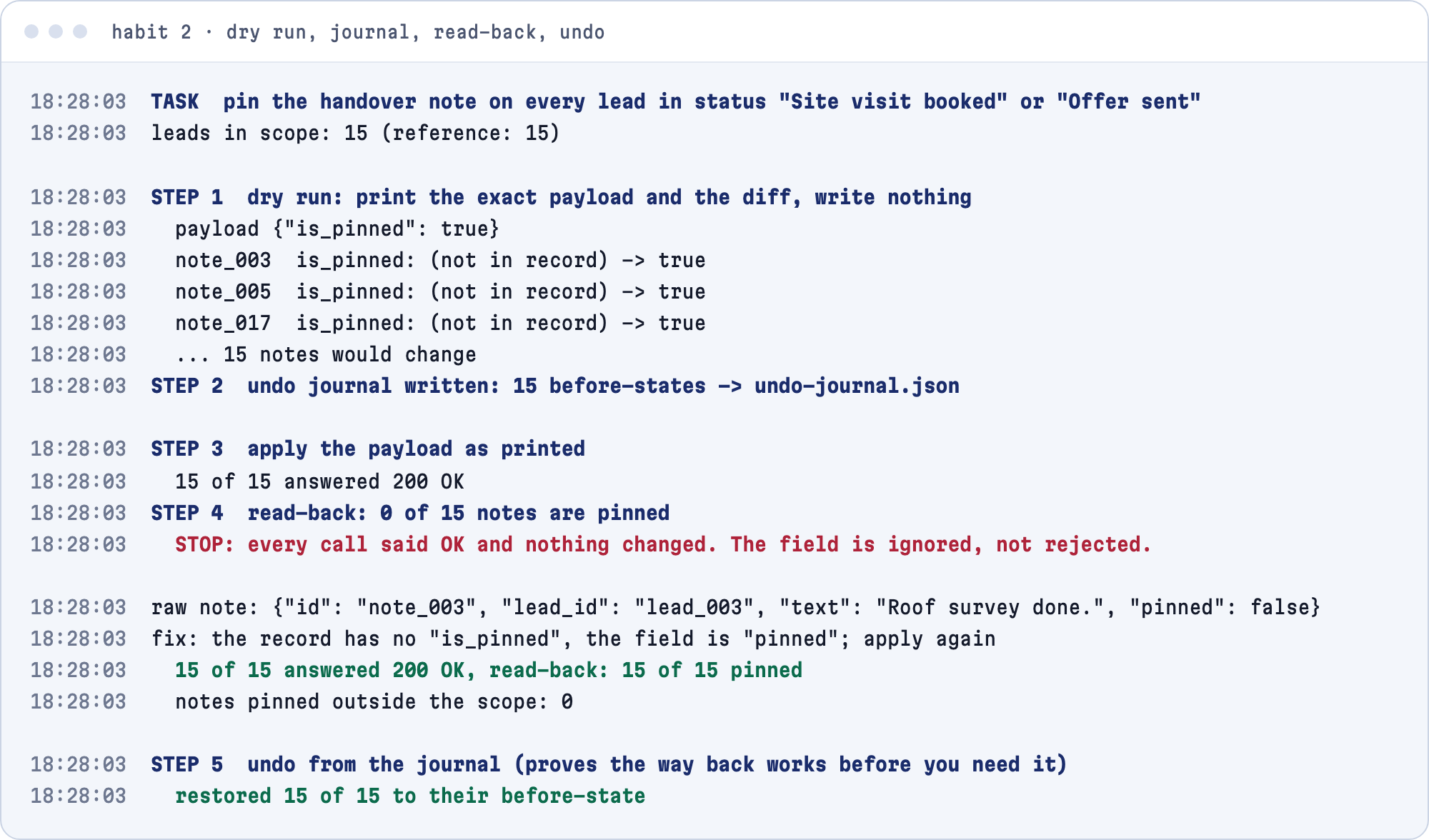
Task: pin a handover note on 15 leads. The dry run printed the payload and the diff, and the undo file saved 15 before-values. The payload used a guessed field name: 15 of 15 calls said OK, and the read-back found 0 pinned notes. The dry run had hinted at it ("not in record"); the read-back proved it. With the right field name: 15 of 15, 0 outside the scope. The undo restored 15 of 15.
Habit 3: right account, read-only access, keys out of the chat
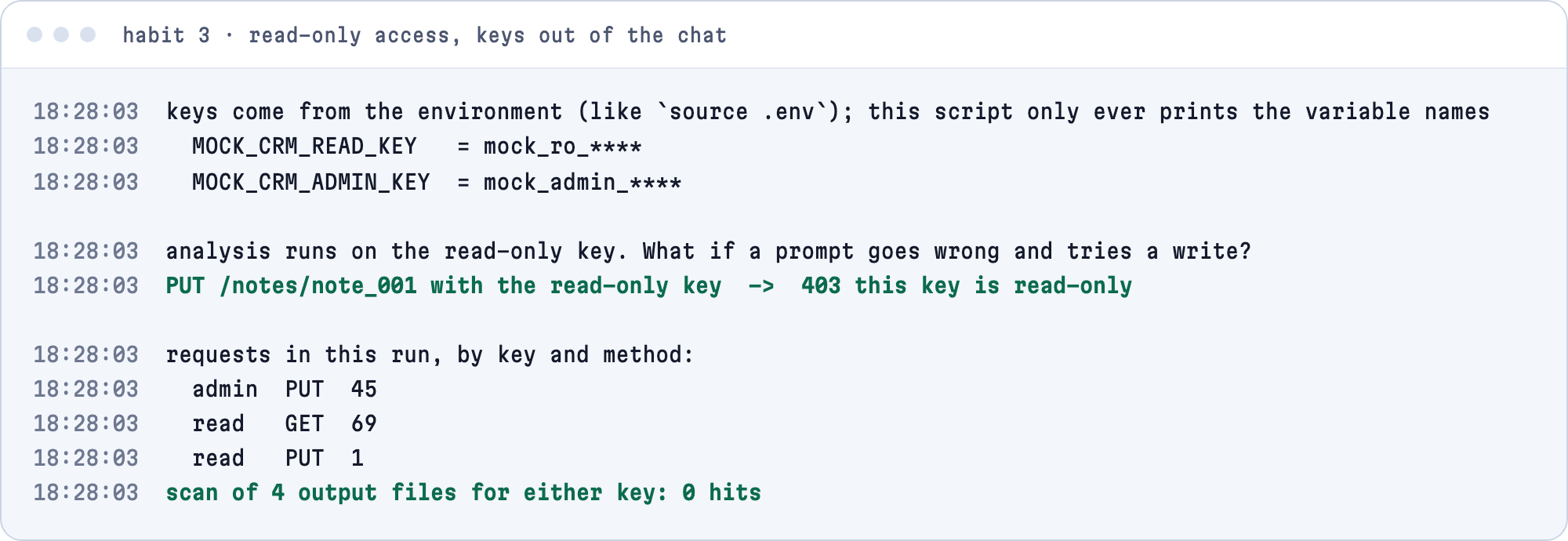
First, ask which account the connection is in (prompt 1 in the prompt pack below; not part of the mock test). The keys came from environment variables, so the logs show only the names and a masked prefix. When the script tried a write with the read-only key, the CRM answered 403. A scan of the logs and the undo file (4 files) found 0 copies of either key. A key pasted into a chat is leaked: rotate it.
04Prompts, checklist and the mock CRM to practise on
8 prompts carry the habits into a connector or a script. Start with these 2:
Pull 3 raw <leads | contacts | deals | calls> with all fields. Show them exactly as the API returns them, no summary.
Then list the field names, their types and 1 example value each.
Do not filter, count or write anything yet.
I want to change <field> to <value> on every <object> where <condition>.
Step 1, dry run: list how many records are in scope and show a before/after table for the first 10. Write nothing.
Step 2: save an undo file with the id and the current value of every record in scope.
Step 3: wait for my "go".
Step 4: apply, then read every record back and report: changed, unchanged, errors.
If any record is unchanged after a "success" answer, stop at once and tell me.
The other 6 are in the prompt pack.
Start small: connect read-only, ask "which account am I in?", pull 3 raw records, then ask your first real question.